Frequently Asked Questions
On this page you can quickly find the most important help for Memory Lane: where to download the app, how to complete the first setup and answers from the manual.
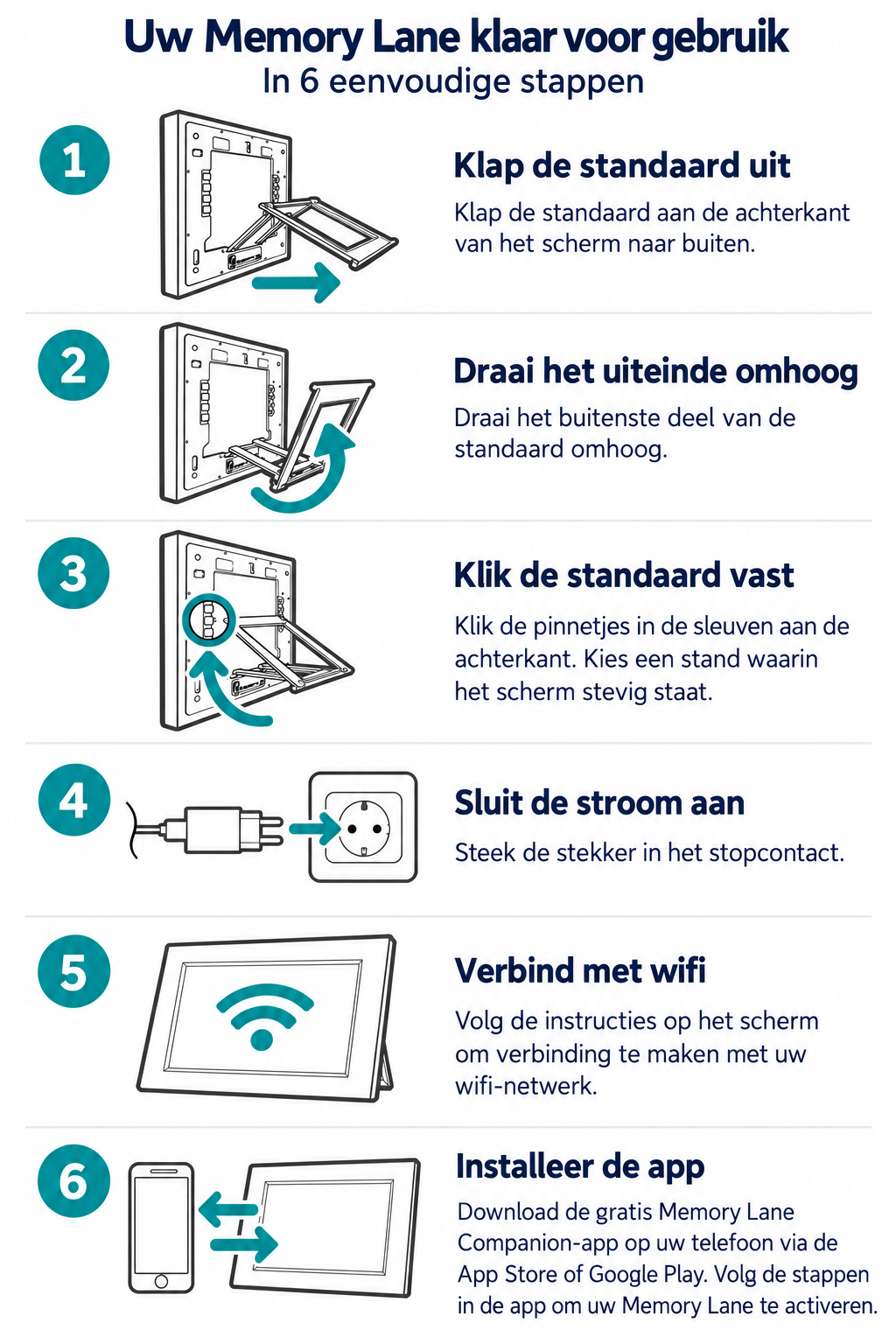
Get your Memory Lane ready to use
Set up the screen and get started in six simple steps. Choose a flat, stable surface where the screen is easy to see, near a power socket.
-
Unfold the stand
Fold the stand out from the back of the screen.
-
Rotate the end upwards
Rotate the outer part of the stand upwards, as shown in the illustration.
-
Click the stand into place
Click the pins into the slots on the back. Choose an angle that keeps the screen stable and check that the stand is secure.
-
Connect the power
Connect the supplied power adapter to the screen and plug it into a power socket.
-
Connect to Wi-Fi
Follow the instructions on the screen to connect to your Wi-Fi network. Have your Wi-Fi password ready.
-
Install the app and set up Memory Lane
Download the free Memory Lane Companion app on your phone from the App Store or Google Play, or download the Windows app for your computer. Follow the step-by-step app setup guide below to set up Memory Lane correctly.
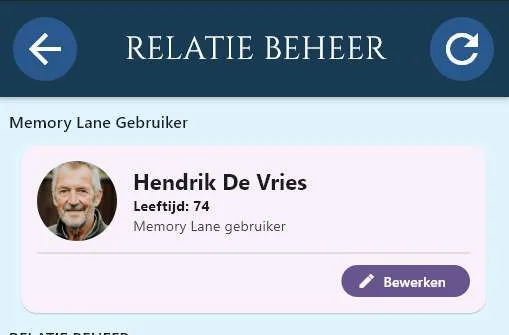
Next, set up your profile and the screen user in the app, invite family members and add photos and calendar events. Follow the instructions below and check together that everything works.
Memory Lane AI Companion app
Quick help with installation, app downloads, video calling, photos, calendar, settings, and daily use of Memory Lane.
Always install the latest Memory Lane AI Companion app. Allow access to photos, camera, microphone and notifications; without these permissions, video calls, photo sharing and notifications will not work properly.
Setting up Memory Lane as described in the guide
The guide works from installation to daily use. This sequence helps to first set the basics correctly and then add extra features.
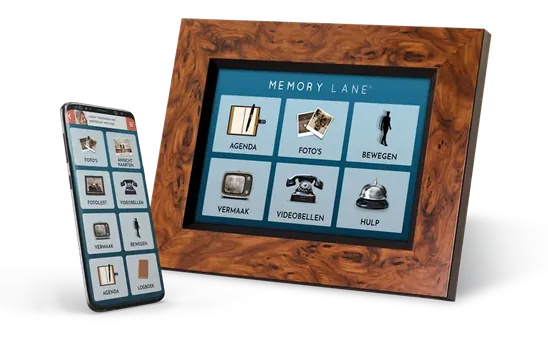
Install the app
Download the latest Memory Lane AI Companion app for Android, iPhone/iPad, or Windows and log in with your account.
Grant permissions
Allow photos, camera, microphone, and notifications. These permissions are necessary for sharing photos, video calls, and notifications.
Complete your profile
Check your own information so that invitations and management remain recognizable for the family circle.
Set the user
Link the person using Memory Lane and check name, relationship, device, and basic settings.
Invite relationships
Use Relationship management to invite family, friends, or caregivers and choose their role.
Adjust day and night
Set sleep mode and screen times so that Memory Lane remains calm when needed.
Fill photos and calendar
Create recognizable albums, add photos, and schedule appointments, birthdays, and memories in the calendar.
Test contact and functions
Test video calling, postcards, WhatsApp link, and settings. Disable features that are too busy.
Herkenbare schermen maken hulp eenvoudiger
Relaties beheren
Nodig familie of zorgverleners uit en bepaal wie onderdeel is van de vertrouwde kring.
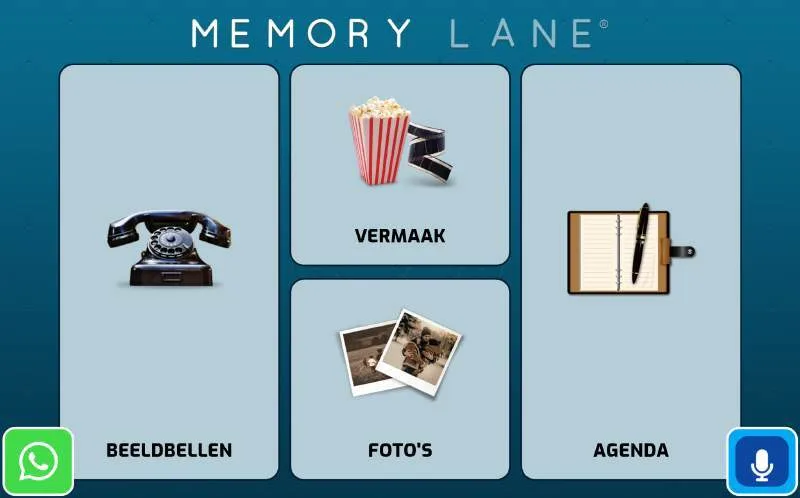
Calm main menu
The functions on the screen can remain simple and grow with what someone can handle.
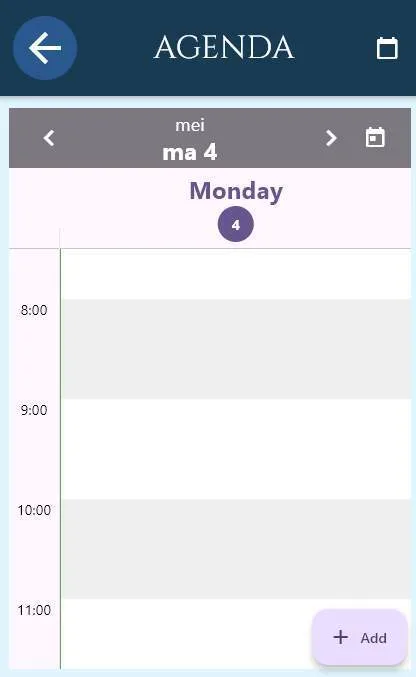
Agenda and rhythm
Appointments, reminders and daily structure remain visible to the user and caregivers.

Video calling
Start contact from the app and keep the screen as simple as possible for the user.